A wedding photo QR code is just a printed link. It opens whatever page you point it to, so the real decision is the destination: an upload page where guests add their photos, a gallery where they find the photographer's photos, or one page that does both. Choose that first, generate a static code from the final link, and test it on two phones before printing anything.
Decide what the code should open
| Destination | What guests can do | Good for |
|---|---|---|
| Upload page of a guest photo app | Add photos (and often videos) | Collecting candid shots during the day |
| Shared album (Google Photos, iCloud) | View and add, with the right account | Small weddings where everyone has the same phone type |
| Photographer's gallery | Browse and download the edited set | After the wedding, when the photos are ready |
| Event gallery with uploads and selfie search | Add photos now, find the ones they appear in later | Larger weddings where guests want their own photos |
One code can serve both moments if the page supports it. With Event Face Finder, the same event link lets guests add photos during the wedding (if you allow it) and later take a selfie to see the photos they appear in, once the photographer's set is added. Guests open it in the phone browser, with no app.
Avoid the expiring QR code trap
Many free QR generators create a dynamic code: the printed pattern points to the generator's own short link, which then redirects to your page. If the free trial ends or the account lapses, the code stops working, sometimes weeks after the wedding, when guests come back for the photos.
Prefer a static QR code that encodes your final URL directly. Most photo platforms give you one in the event settings, or you can make one with our free wedding and event photo QR code generator, which downloads print-ready PNG and SVG files. If you must use a dynamic code, check how long the redirect stays active without a subscription.
Word the card so guests act
Keep it to one action and one benefit:
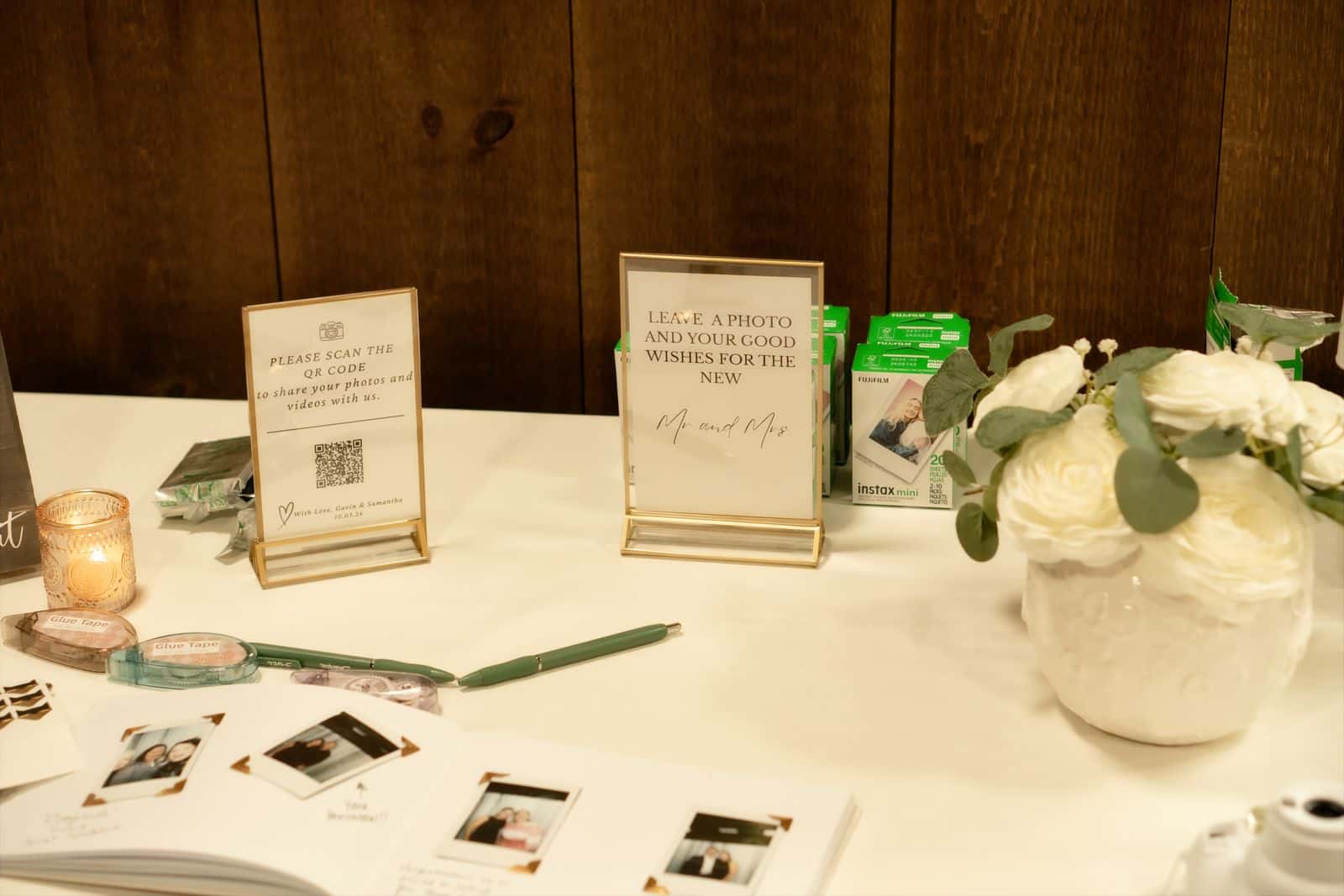
Share your photos of us! Scan to add the pictures you take today. No app needed.
or, if the code also leads to the finished gallery:
Scan to add your photos tonight — and find the ones you're in once the photographer's set is online.
Add a short typed link under the code, the date until which uploads are open, and nothing else. Guests read table cards in two seconds.
Print it at a size that scans
- At least 2.5 cm (1 inch) wide on table cards; 10 cm or more on a sign read from a distance.
- Dark code on a light, plain background. Gold foil and low contrast often fail.
- Leave a white margin around the code.
- Avoid placing it where a candle, glass or flower will cover it.
Put one code per table and one larger sign near the bar or the photo booth, where people already have their phones out.
Test before printing 120 cards
- Scan with an iPhone and an Android phone, using the default camera app.
- Use mobile data, not the venue Wi-Fi you set up yourself.
- Stay signed out of your organizer account.
- Upload one test photo and check that it appears where you expect.
- Delete the test photo, then send the file to print.
Re-test after any change to the event name or link. A regenerated link means a new code.
After the wedding
Send the same link the next morning by message or email. Many guests upload on the trip home. When the photographer delivers, send it once more: if the gallery offers selfie search, guests can now find themselves without scrolling through the whole set.
For more on choosing the tool behind the code, read our wedding photo app comparison. For non-wedding events, the general event photo QR code guide covers signage and access codes.
Collect guest photos and let everyone find theirs
Guests add photos from their phone browser, you approve them, and everyone finds the pictures they appear in with a selfie. One price per event, no app to install.
Create an event