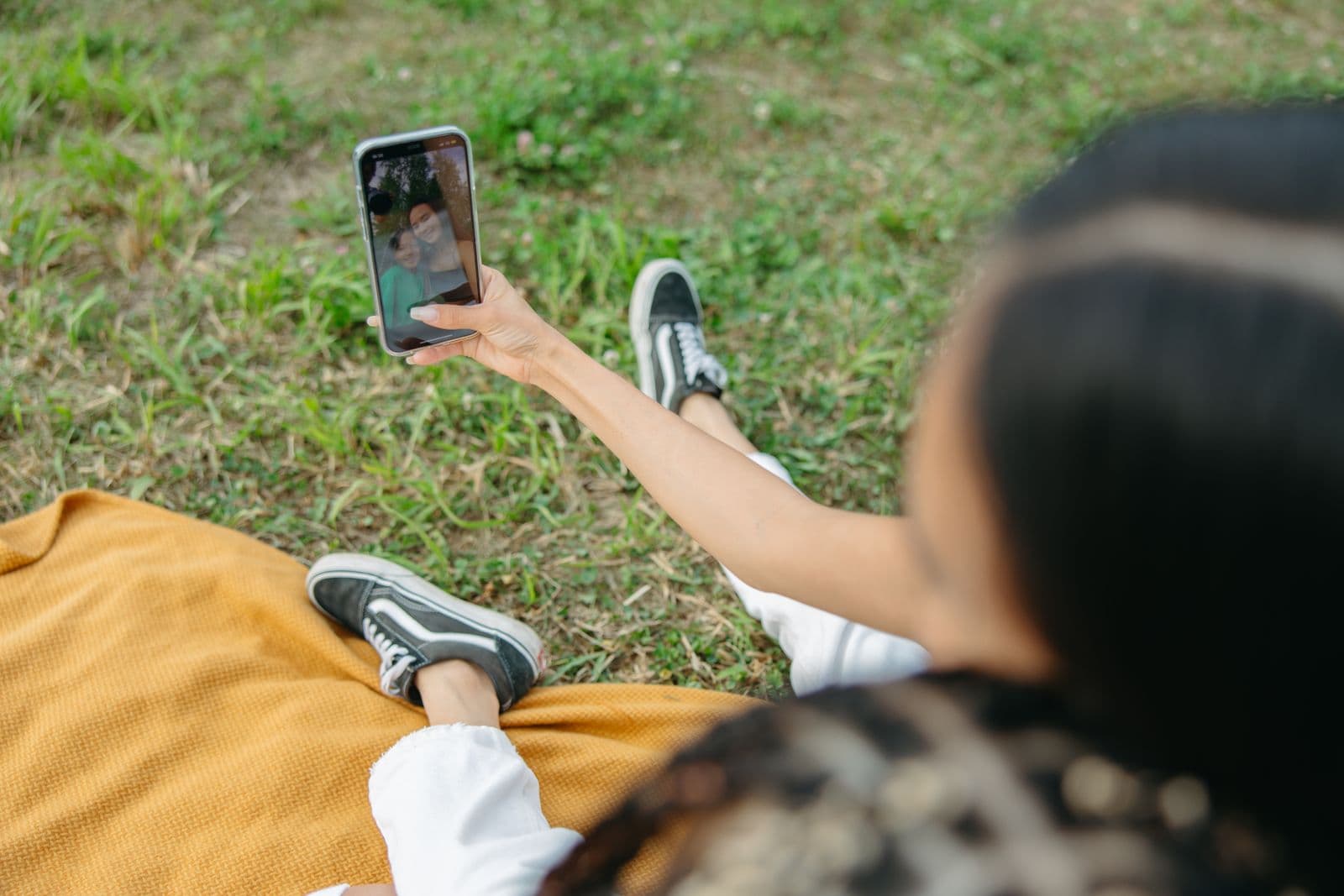

Searching photos by face works in two different places. In your own photo library, Google Photos and Apple Photos group similar faces so you can open every picture of one person. In an event gallery someone else shares, such as a wedding, race or conference, you take a selfie and the gallery shows the photos you likely appear in. The steps are different, so start with where the photos are.
In Google Photos
Google Photos calls the feature Face Groups. When it is on, Google Photos groups photos of similar faces and lets you add a name to each group.
- Open Google Photos settings and look for Group similar faces.
- Turn on Face Groups.
- Open the People section (photos.google.com/people on a computer) and select a face.
- Add a name or nickname, then type that name in the search bar to find the photos later.
Google's help page notes that the feature is not available in all regions, domains or account types. If you see no row of faces, it is either switched off, unavailable for your account, or no groups have been created yet. Labels you add are visible only to you, even in photos you share.
Face Groups only searches your own library. It does not search a shared album owned by someone else unless you save those photos into your library.
On iPhone, iPad and Mac
Apple Photos groups faces under People (with pets in recent versions). Open the Photos app, go to the People collection, select a face and add a name. You can then search that name. Apple's guide explains how to find and name people in Photos.
If a person shows up in two groups, merge them by giving both the same name. If a photo is missing, open it, look at the people detected and correct the tag.
In an event gallery
When the photos belong to a photographer or an organizer, you do not have them in your library, so the tools above cannot help. This is where selfie search is useful.
Event galleries with face search work roughly like this:
- You open the gallery link or scan the event QR code.
- You accept the search conditions and take a selfie in the browser or the app.
- The gallery compares your selfie with the faces in that event only, and shows likely matches.
- You check the results and download what the organizer allows.
Event Face Finder, Waldo and Kwikpic are examples. Event Face Finder runs in the phone browser with no app; results are possible matches within that one event, not a search of the web or other events. Our guide to searching event photos with a selfie goes through the guest steps.
Why face search misses some photos
All of these tools compare face measurements, so they struggle with the same cases:
- Faces in profile, turned away or partly hidden by sunglasses, a hat or a hand.
- Very small faces in wide crowd shots.
- Motion blur, strong backlight or coloured stage lighting.
- Large changes in appearance, such as face paint, a costume or a helmet.
If a known photo is missing, retake the selfie facing a window, without glasses, and try again. Then browse the photos around the time you were there. The face search troubleshooting guide has a full checklist.
What face search does not do
Library tools and event galleries search photos that you or the organizer already hold. They do not look for your face across the internet. Public web face search engines are a separate category with legal restrictions in several countries, and are not covered here.
Which option to use
| Your situation | Use |
|---|---|
| Find all photos of your child on your phone | Google Photos Face Groups or Apple Photos People |
| Find yourself in a friend's shared album | Save the album to your library, then use your library's face groups |
| Find your photos from a wedding, race or conference | The event gallery's selfie search, or ask the organizer for the gallery link |
| You organize the event and want guests to find their own | An event gallery with selfie search |
If you run the event, Event Face Finder lets guests find their own photos this way: you add the photos, share one link, and each guest searches with a selfie in the browser.
See how event photo search works
See how a selfie helps you find photos in an event gallery and what to try when a photo is missing.
Understand face search